Instrumentalist · User guide
Every screen, every control.
The full walkthrough of the desktop app, from installing it to exporting a finished score. If you just want to get going, steps 1 to 4 are all you need. The rest is here for when you want it.
Version 1.0.0 · Windows 10 & 11 · macOS 12+ (Apple Silicon and Intel)
Step 1
Install and activate.
Windows. Download the installer from the Instrumentalist page and run it. Windows may show a “Windows protected your PC” notice because the app is newly published. Choose More info, then Run anyway. Setup installs the app for every user on the machine, so it asks for administrator rights once.
macOS. Download the disk image for your Mac, Apple Silicon for an M1 or later, Intel for an older one. If you are unsure, open the Apple menu and choose About This Mac. Open the .dmg and drag Instrumentalist into Applications. The Mac builds are signed and notarised by Apple, so they open without a warning.
First launch. The app opens on the Instrumentalist logo, then the home screen. The very first analysis downloads the AI models it needs, so give it a moment on that run.
Activate your licence. After you buy a plan you receive a licence key by email. In the app, open the plan bar at the bottom of the home screen (it reads MANAGE), choose Enter a licence key, paste the key, and confirm. The free tier needs no key.
Step 2
The home screen.
Where you pick an instrument and reach your saved work.
Instruments
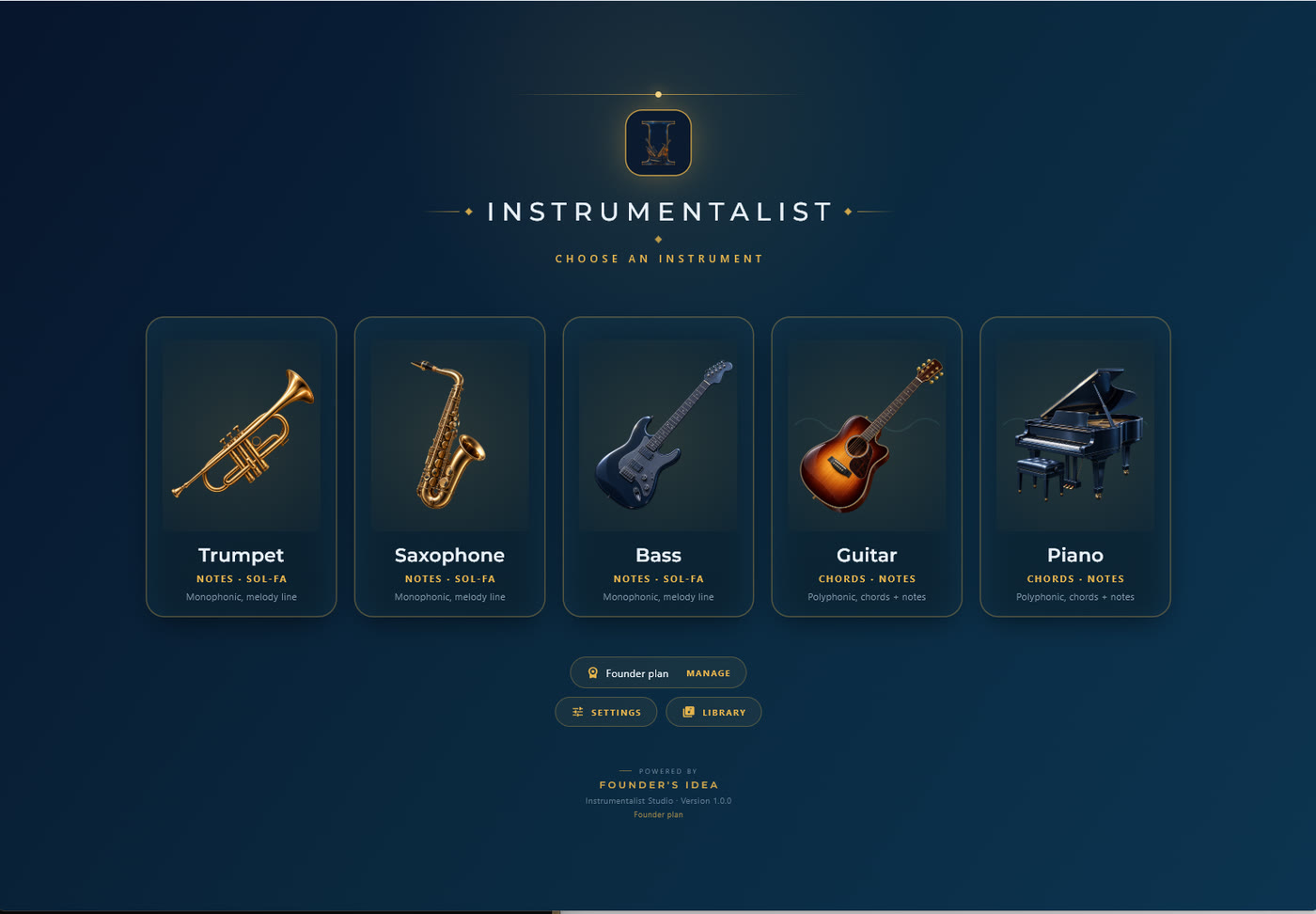
Five cards: trumpet, saxophone, bass, guitar and piano. Each card says what it reads, notes and sol-fa for the melody instruments, chords and notes for guitar and piano.
Plan bar
The bar marked MANAGE shows your plan and how many transcriptions are left this month. Open it to enter a key or manage billing.
Library
Every song you have analysed, across all instruments. Open one to replay it any time, free.
Settings
Choose where imported songs are saved. By default that is a folder called Instrumentalist inside your Music folder.
Step 3
Around the window.
Once a song is open, every screen in the app follows the same layout. Learn it once and the rest of this guide is just detail.
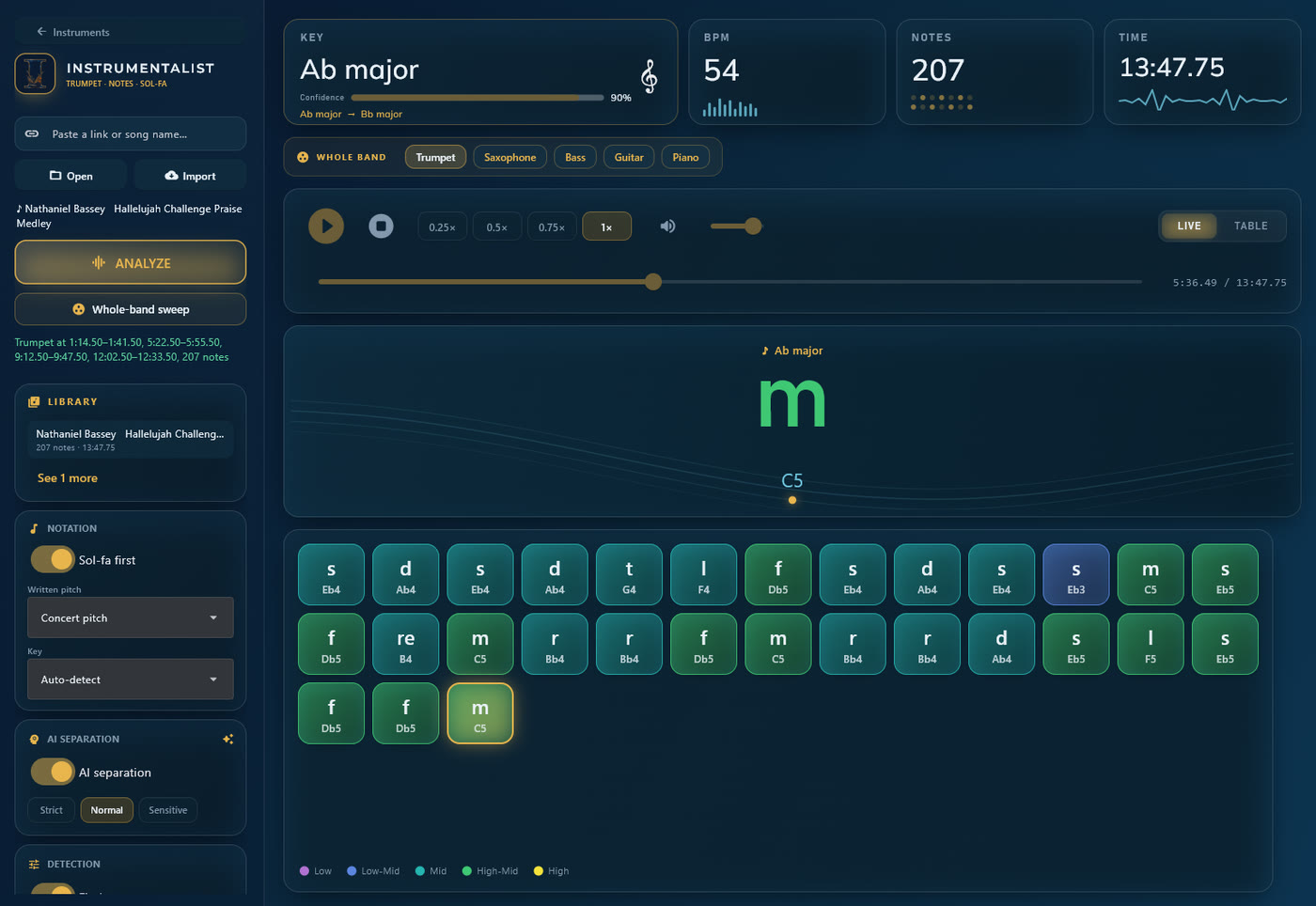
- The left panel. Where a song comes in and how it is read. The link box and Open and Import sit at the top, then Analyze and Whole-band sweep, then your recent library, then the listening settings.
- The summary cards. Across the top: the key with a confidence reading, the tempo in beats per minute, how many notes or chords were found, and the length of the piece.
- The transport. Play and stop, the speed buttons, the volume slider, the seek bar, and the Live and Table switch on the right.
- The stage. The large reading area. In Live view it shows the note or chord sounding right now, big enough to read from a music stand, with its letter name underneath.
- The tiles. The whole part laid out in time along the bottom. The tile playing now is outlined in gold, and the colour of each tile tells you its register, from low to high.
Step 4
Bring a song.
Open a file. Use Open to choose an audio file from your computer. WAV, MP3, FLAC, OGG and M4A all work.
Or use the link box. The box at the top of the left panel reads Paste a link or song name, and takes four kinds of input:
- A YouTube link, which downloads directly.
- A Spotify link. Spotify audio is protected and cannot be downloaded, so the app reads the track title from the link and imports the matching recording from YouTube.
- An Apple Music link, resolved the same way, by title.
- Plain text, treated as a song search.
Whichever you use, press Import. The audio is saved as a WAV in your songs folder, so a song you have imported once never needs importing again.
Then press Analyze. The app separates your chosen instrument from the mix and writes out what it plays. The first run on a new machine sets up the AI models, so it takes longer; later runs are quicker.
You are responsible for having the right to use any recording you put through the app. A transcription of someone else’s recording is still based on their work.
Step 5
Choose how it listens.
The panel down the left tunes the analysis. The defaults are good, so reach for these only when a result needs a nudge. Change a setting and press Analyze again to apply it.
AI separation
Lifts your instrument cleanly out of the full mix before reading it. Leave it on for real recordings. Strict, Normal and Sensitive control how hard it pulls.
Find the part
Locates where your instrument actually plays and reads only those sections, so silences and other instruments do not clutter the result.
Sensitivity
For melody instruments. Raise it to catch faint or fast notes, lower it to ignore stray ones. Start in the middle and adjust by ear.
Chord detail
For piano and guitar. Sparse keeps the main chords, Balanced is the everyday setting, Detailed catches passing chords and quicker changes.
Sol-fa first
Sets whether the big display leads with tonic sol-fa or with letter names. Both are always shown; this only decides which one is on top. On by default.
Key tracking
Off, the song is read in one key. On, the app follows changes of key through the song and marks where each new key begins, so a modulation never throws off your reading.
Metronome
Plays a soft click on every beat during playback, accented when the chord changes, to help you feel the time. Off by default.
Written pitch
Concert pitch, or the written pitch of a transposing instrument. Set it once for your horn and the letters come out the way you read them.
Step 6
Read the result.
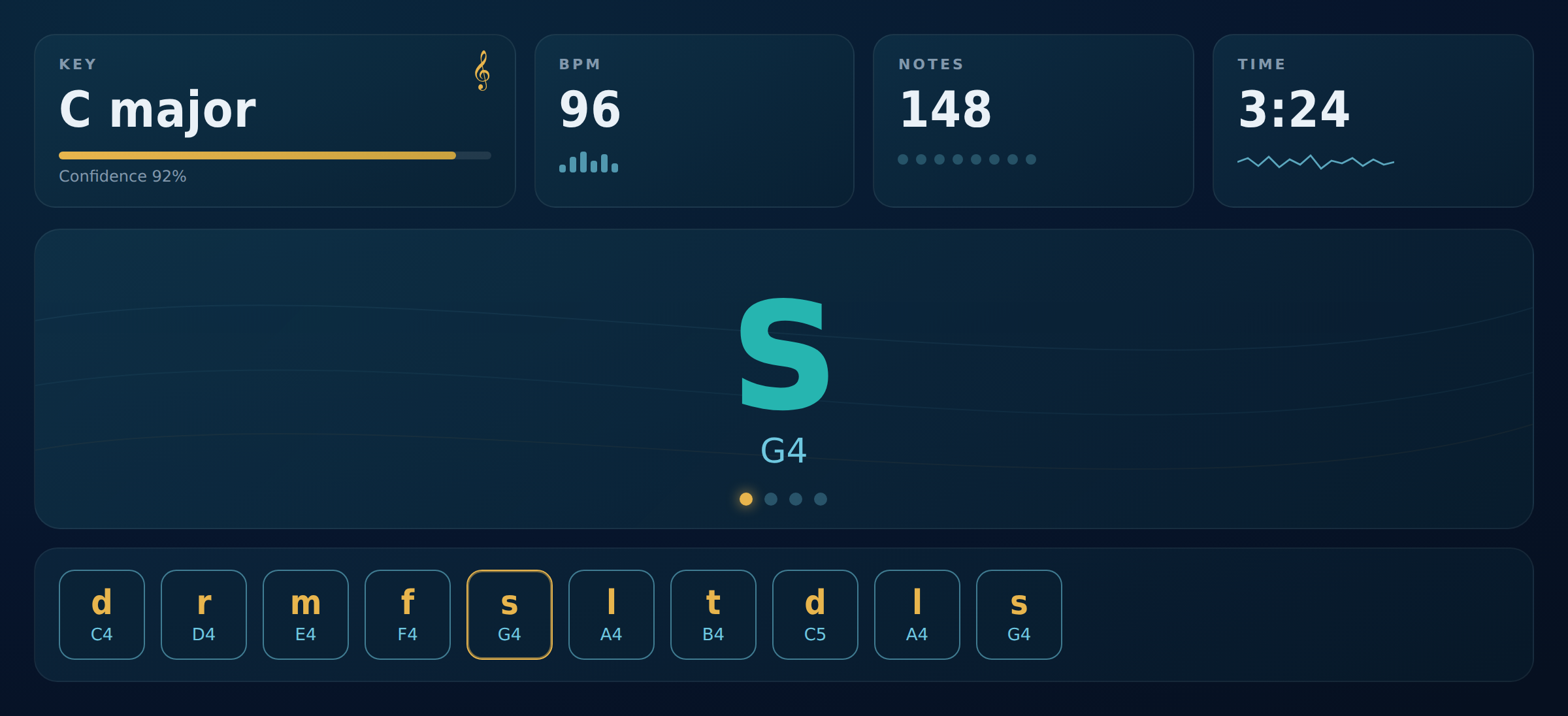
The summary cards. Along the top you see the key, the tempo in beats per minute, the number of notes or chords found, and the length of the piece. The key card also shows a confidence reading.
Live view and Table view. Live view reveals each note or chord as the song plays, so you read along with the music. Table view lays the whole transcription out at once as a list you can scan and print.
Transpose. Read the part in a different key without changing the sol-fa. Use it for a B-flat or E-flat instrument, or to move a part into an easier key. The written letters and the key label shift; the sol-fa stays the same, because it is relative.
Playback. Play and stop, scrub with the seek bar, set the volume, and slow the music down to 0.75, 0.5 or 0.25 speed to catch a tricky passage. When a key changes mid-song, a marker appears in the flow at that point.
Step 7
Piano and guitar.
The piano and guitar screens read the harmony rather than a single line, so they work a little differently.
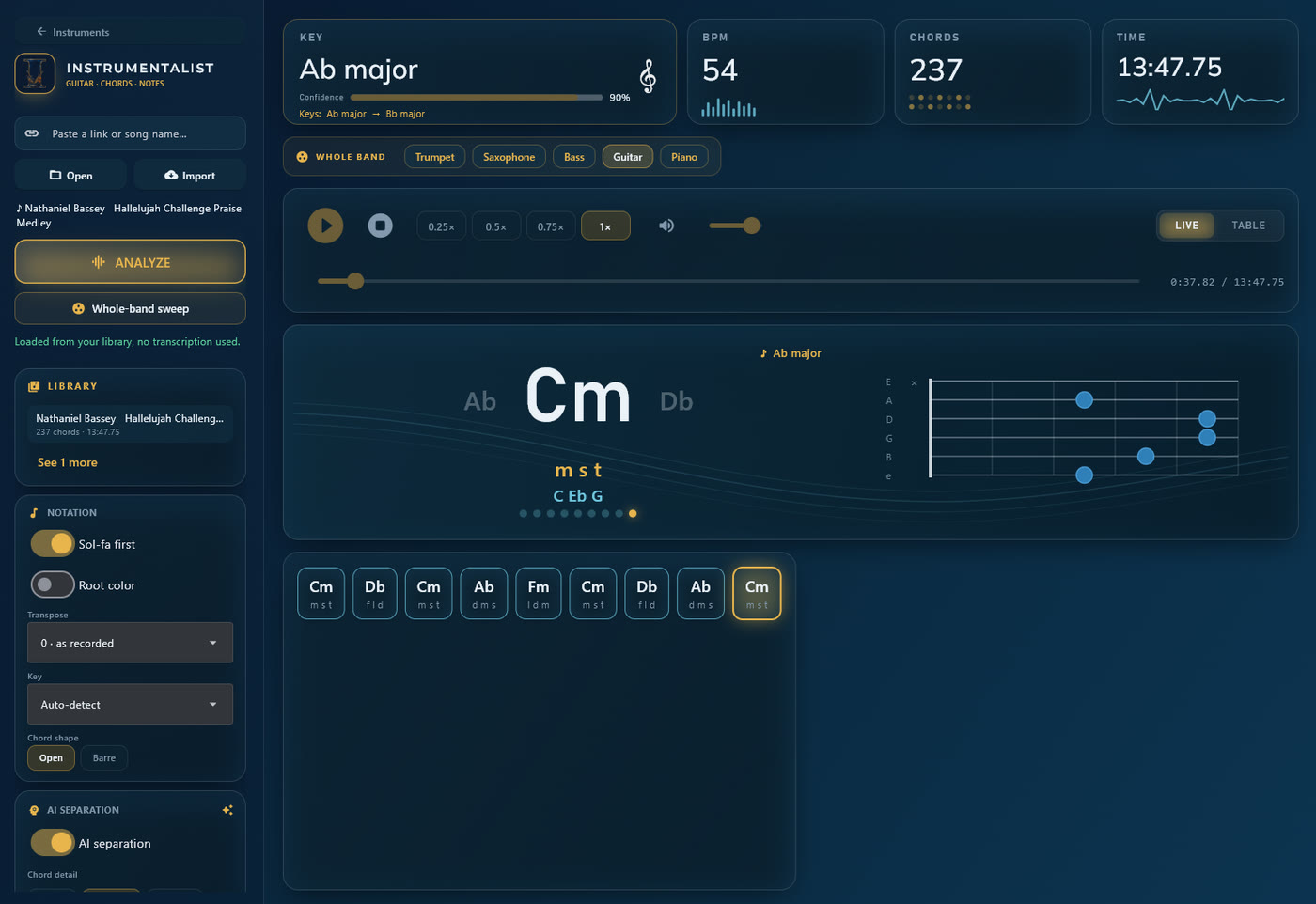
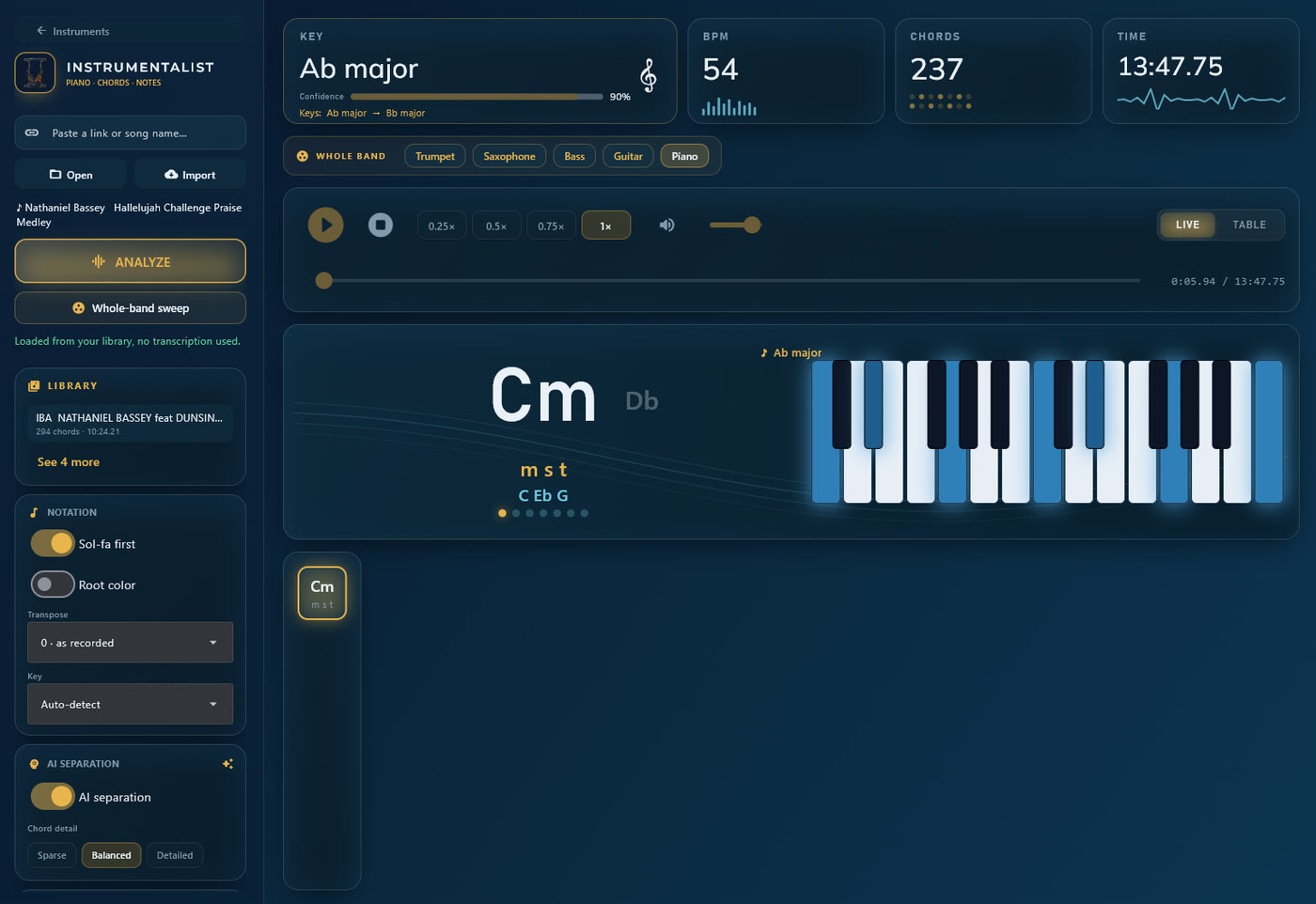
A chord at a time. Each chord is named and shown with its notes and sol-fa, with the chords either side so you can see what is coming.
Chord detail. Use Sparse, Balanced or Detailed to control how much passing harmony is written, as above.
Root colour. Tints the display by the root of each chord, a quick visual cue as the harmony moves.
Consistent beats. Chords are settled onto the beat of the music, so the chart reads evenly while still allowing a genuine passing chord to show through.
Step 8
Your library.
Everything is kept. Each analysed song is saved and shows up in the library on the home screen, and in a recent list on each instrument.
Replay is free. Reopen a saved song and play it any time without spending another transcription. A transcription only counts against your monthly allowance when you analyse a song for the first time, or re-analyse it after changing a setting.
Your library and settings live on your own computer, under your user profile.
Step 9
Whole-band sweep.
Studio and Ensemble plans.
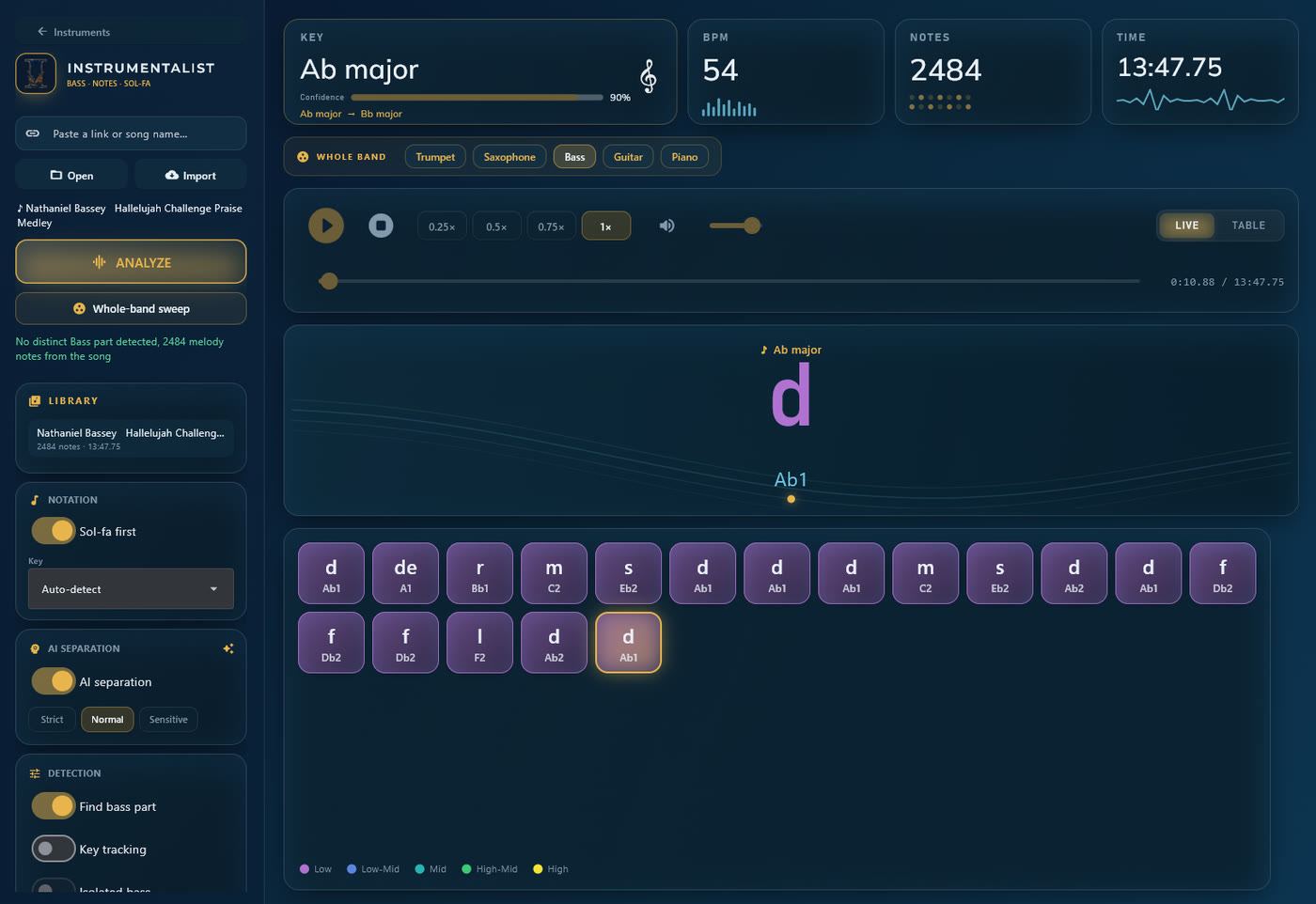
Every instrument in one pass. Instead of analysing one instrument at a time, the sweep separates the song once and transcribes all five instruments together, saving each to your library.
One shared key and tempo. The sweep reads a single key timeline and tempo from the mix and gives them to every instrument, so all the parts agree, and any key change lands at the same moment on each one.
After a sweep, open any instrument from the library to read its part. The whole sweep counts as one transcription.
Step 10
Export your work.
Exporting is part of the paid plans. Every file you save carries your licence name, so a shared file always names its owner.
CSV
The notes or chords as a spreadsheet, for your own analysis or record keeping.
Sol-fa text
The sol-fa and letter sequence as plain text, easy to paste anywhere.
MIDI
Take the part into your DAW or notation software as a standard MIDI file.
PDF chart
A clean, printable chart of the notes and chords for the music stand. Studio and Ensemble.
Sheet music: engraved PDF and MusicXML
On Ensemble, the Sheet music button saves a real engraved score as a PDF, and the same music as MusicXML, the standard file that opens in MuseScore, Finale, Sibelius or Flat, where you can edit and print it. Melody instruments become a single-line staff; piano and guitar become a chord chart. The time signature is detected from the music.

Step 11
Plans, limits and devices.
Free. 5 transcriptions a month, trumpet and piano only, tracks up to 3 minutes, on-screen results with no export.
Player. All five instruments, 40 songs a month, tracks up to 12 minutes, 2 devices, and export to CSV, MIDI and sol-fa.
Studio. Everything in Player, plus 100 songs a month, tracks up to 25 minutes, 2 devices, the whole-band sweep, and printable PDF charts.
Ensemble. The team plan. Everything in Studio, plus 300 songs a month, engraved sheet music as PDF and MusicXML, and 3 device seats for your group, with the option to buy extra units for 3 more seats each, for a band, school or worship team.
Prices show in US dollars, and automatically in naira at checkout for visitors in Nigeria. See the plans on the Instrumentalist page for current pricing.
Step 12
Manage your subscription.
Activation and check-ins. Paste your licence key once to activate. The app checks in with us about once a week to confirm your subscription and works offline in between, so it is fine on a plane or in a hall with no signal.
Devices. Player and Studio each run on up to two devices, counted across desktop and mobile together, so a laptop and a phone are covered. Ensemble is a team plan: enter the same licence on each seat, up to the number of seats your team has bought. You can see and free up your devices at Manage your devices.
Manage or cancel. Open the plan bar and choose Manage subscription to open your billing portal, where you can change or cancel your plan. Cancelling stops future billing and your access runs to the end of the period you have paid for.
Refunds. Payments are not refunded, but you can cancel any time to stop renewing. See the refunds policy on the website.
Step 13
Troubleshooting.
Windows warns about an unknown publisher
The app is newly published, so Windows SmartScreen shows a caution on first run. Choose More info, then Run anyway. This eases as more people install it. The macOS builds are notarised by Apple and do not show this.
The app will not open after installing
On Windows, run Instrumentalist diagnostics from the Start menu, or Troubleshoot.bat in the install folder. It launches the app in a window that shows any error. On a Mac, open Terminal and run /Applications/Instrumentalist.app/Contents/MacOS/Instrumentalistto see the same output.
Analysis is slow or the AI step is missing
The first analysis downloads the AI models, so it takes longer than later runs. If a message says the AI packages are missing, run install_ai.bat in the install folder.
It runs but feels slow on every song
If you have an NVIDIA graphics card, run enable-gpu.bat in the install folder to switch on graphics-card acceleration. The app works without it, just more slowly.
An import fails
Some recordings are region-locked or unavailable. Try a different link for the same song, type the song title into the box as a search, or open a local audio file instead.
Manage subscription does not open
It opens your billing portal in your web browser. If nothing appears, check that a default browser is set and that you are online.
Subscribers
Take the guide with you.
The whole guide as a PDF, with the screenshots, for your music stand or your rehearsal folder. Enter the licence key from your purchase email.
No subscription yet? Everything in the PDF is on this page, free to read.
Ready to read your first song?
Head back to the Instrumentalist page to download the app and pick a plan.